
Exciting news! The REListCheck™ tool now includes three new features: view compliance history, reactivation of withdrawn listing request form, and the archive folder.
These enhancements are designed to improve usability and provide greater transparency when managing listings.
View compliance history
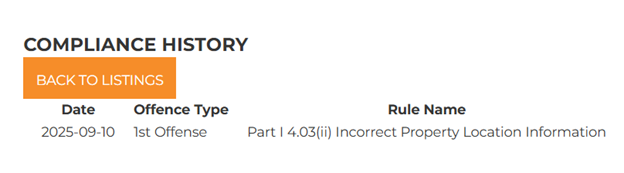
To view your compliance history, select VIEW COMPLIANCE HISTORY on the REListCheck™ main page or the auto-detected listing violations page.

The compliance history page will show the date the violation notice was issued, the offence type and the rule.
Request reactivation of withdrawn listing
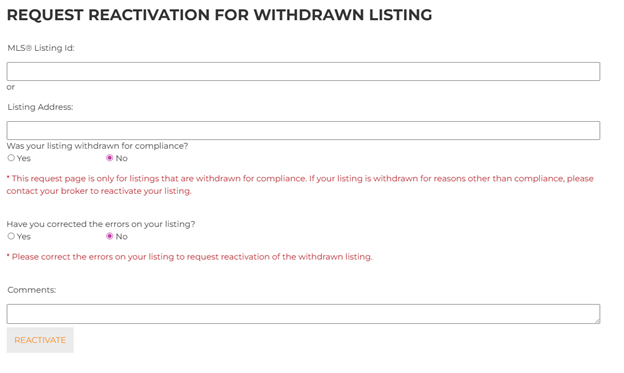
If your listing was withdrawn for compliance and the errors have been corrected, you may request reactivation for review by the Member Practice team. Select REQUEST REACTIVATION OF WITHDRAWN LISTING on the REListCheck™ main page or the auto-detected listing violations page.

Please note, this request form is for listings withdrawn for compliance only and should be used after all errors have been corrected. If your listing was withdrawn for reasons other than compliance, contact your broker to reactivate your listing.
Archive folder
Member feedback indicated that the first version of the REListCheck™ tool did not include a way to mark flags as reviewed, resulting in members rechecking flags they had already reviewed. To improve usability, an archive folder has been added.
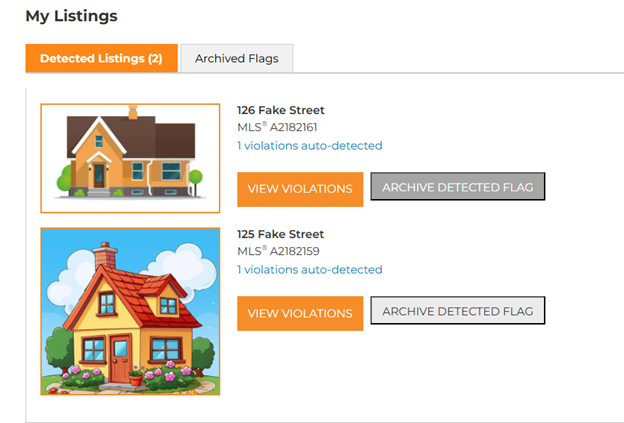
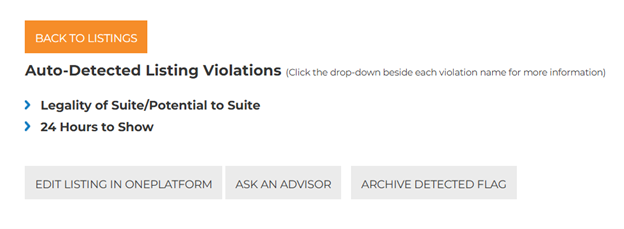
After reviewing a flag, select ARCHIVE DETECTED FLAG on the tool’s main page or the detected violations page to move it to the Archived flags folder.
Once a flag is archived, it cannot be moved back to the Detected Listings folder. However, the detected violations can still be viewed on the listing in the Archived Flags folder.
Note: The orange tab indicates which folder you are in.


Visit CREB®Link to explore the new features in REListCheck™. The updated how-to video and text guides walk you through the changes.
Have questions?
Visit the REListCheck™ FAQ page or Ask An Advisor.

{ 0 comments…}